
Filter Layouts
Instead of limiting your users to a single filtering approach, Filament provides five distinct layout strategies that transform how filters are presented and accessed. From space-efficient dropdowns to immersive modal experiences, these layout options let you create filtering interfaces that perfectly match your application's workflow and user needs. Whether you need quick access filters for dashboard tables or comprehensive filtering for complex data exploration tools, Filament's layout system adapts to any scenario.
# Dropdown layout (default)
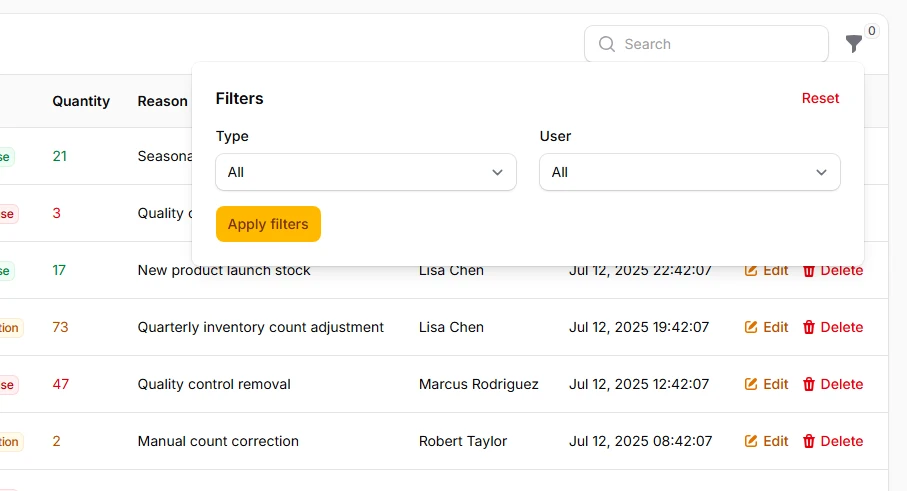
The compact dropdown approach keeps your interface clean while providing instant access to filtering options. Perfect for most use cases where screen real estate is precious but filtering capabilities remain essential. Dropdowns automatically expand their width based on content and support multi-column layouts for better organization.
->filters([
    SelectFilter::make('type')
        ->options([
            'increase' => 'Increase',
            'decrease' => 'Decrease',
            'correction' => 'Correction',
        ]),
    SelectFilter::make('user')
        ->relationship('user', 'name')
        ->searchable()
        ->preload(),
])
->filtersFormColumns(2)
->filtersFormWidth('2xl')
->filtersFormMaxHeight('400px')
# Modal layout for comprehensive filtering
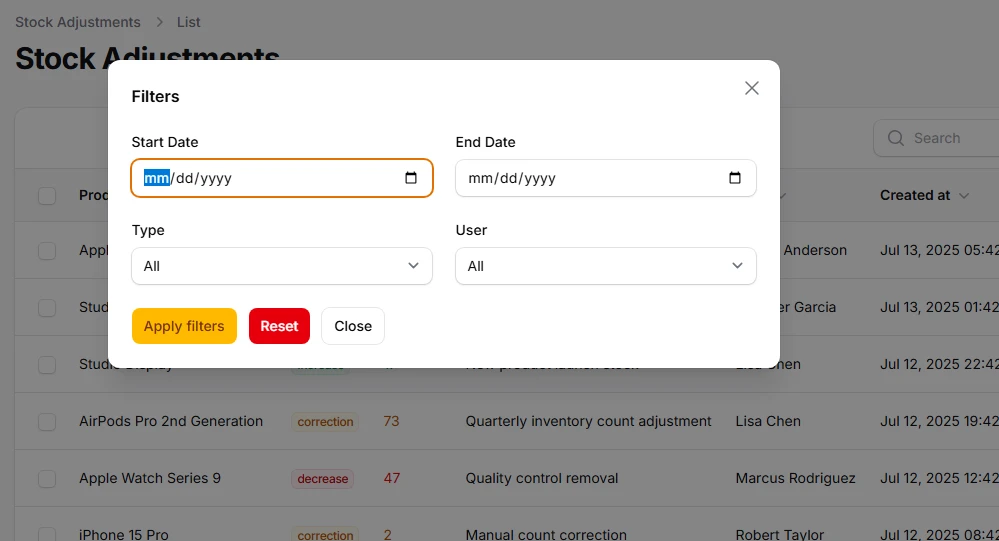
Transform your filtering experience into an immersive full-screen interface perfect for complex data exploration. Modal layouts provide unlimited space for advanced filter combinations, multi-step filtering workflows, and detailed form controls without cluttering your main interface.
->filters([
    Filter::make('date_range')
        ->schema([
            DatePicker::make('from')->label('Start Date'),
            DatePicker::make('to')->label('End Date'),
        ])->columns(2)
        ->query(function () {
            // ...
        })
        ->columnSpanFull(),
    SelectFilter::make('type')
        ->options([
            'increase' => 'Stock Increase',
            'decrease' => 'Stock Decrease',
            'correction' => 'Stock Correction',
        ])
        ->multiple(),
    SelectFilter::make('user')
        ->relationship('user', 'name')
        ->searchable()
        ->multiple()
        ->preload(),
], layout: FiltersLayout::Modal)
->filtersFormColumns(2)
->filtersFormWidth('2xl')
# Slide-over layout for contextual filtering
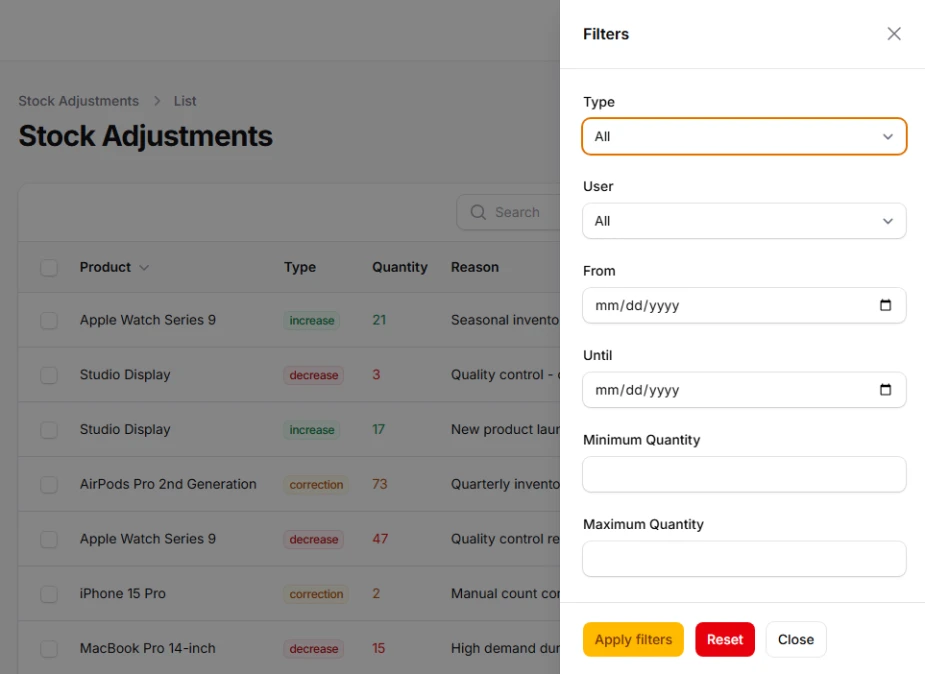
Create an elegant side-panel experience that slides in from the right, maintaining context with your main content while providing dedicated space for filtering. The slide-over approach feels less intrusive than modals while offering more room than dropdowns.
->filters([
    SelectFilter::make('type')
        ->options([
            'increase' => 'Increase',
            'decrease' => 'Decrease',
            'correction' => 'Correction',
        ])
        ->multiple(),
    SelectFilter::make('user')
        ->relationship('user', 'name')
        ->searchable()
        ->preload(),
    Filter::make('created_at')
        ->schema([
            DatePicker::make('from'),
            DatePicker::make('until'),
        ])
        ->query(function () {
            // ...
        }),
    Filter::make('quantity_filter')
        ->schema([
            TextInput::make('min_quantity')
                ->numeric()
                ->label('Minimum Quantity'),
            TextInput::make('max_quantity')
                ->numeric()
                ->label('Maximum Quantity'),
        ])
        ->query(function () {
            // ...
        }),
], layout: FiltersLayout::Modal)
# Above content layout for immediate visibility
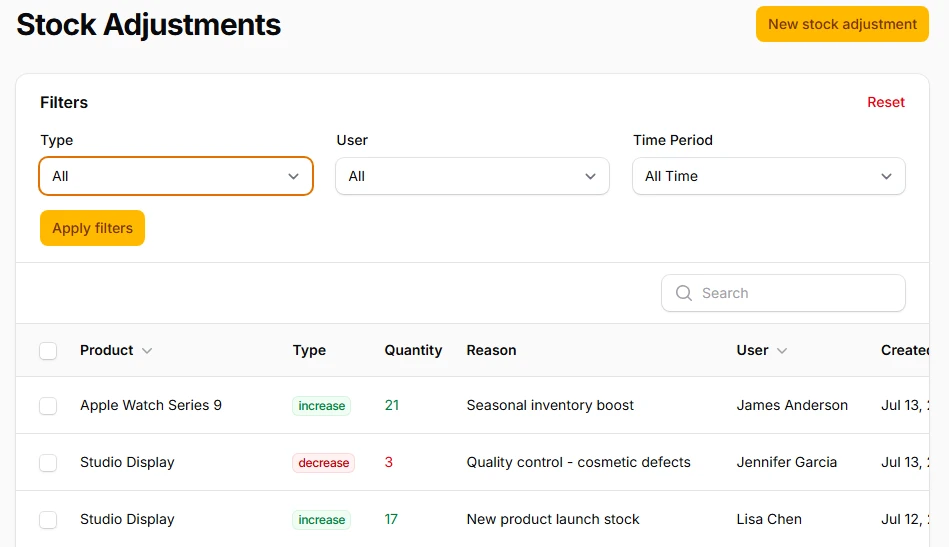
Place filters directly above your table content for instant accessibility without any clicking required. This approach works excellently for frequently-used filtering options and scenarios where filter visibility drives user workflow and decision-making.
->filters([
    SelectFilter::make('type')
        ->options([
            'increase' => 'Stock Increases',
            'decrease' => 'Stock Decreases',
            'correction' => 'Stock Corrections',
        ])
        ->default('increase'),
    SelectFilter::make('user')
        ->relationship('user', 'name')
        ->searchable()
        ->preload(),
    TernaryFilter::make('recent')
        ->label('Time Period')
        ->placeholder('All Time')
        ->trueLabel('Last 30 Days')
        ->falseLabel('Last 7 Days')
        ->queries(
            true: fn (Builder $query) => $query->where('created_at', '>=', now()->subDays(30)),
            false: fn (Builder $query) => $query->where('created_at', '>=', now()->subDays(7)),
            blank: fn (Builder $query) => $query,
        ),
], layout: FiltersLayout::AboveContent)
->filtersFormColumns(3)